

Step 1: Campaign Status
Each campaign displays a Status badge showing its current state:- scheduled – A start date and time are set. The campaign will begin automatically.
- in_progress – Calls are actively being placed according to concurrency.
- completed – All calls have finished and the campaign is closed.
Step 2: Key Metrics on the Dashboard
For every campaign, the dashboard displays:- Total Calls – Number of outbound calls in the campaign.
- Campaign Name - Name of the campaign
- # Completed – Calls that reached a final outcome.
- # Picked – Calls successfully answered by recipients.
- # Voicemail – Calls that ended in voicemail/answering machine.
- Outbound Phone Number (sipPhoneNumber) – The SIP caller ID used.
- Last Modified - Date and time of the last update
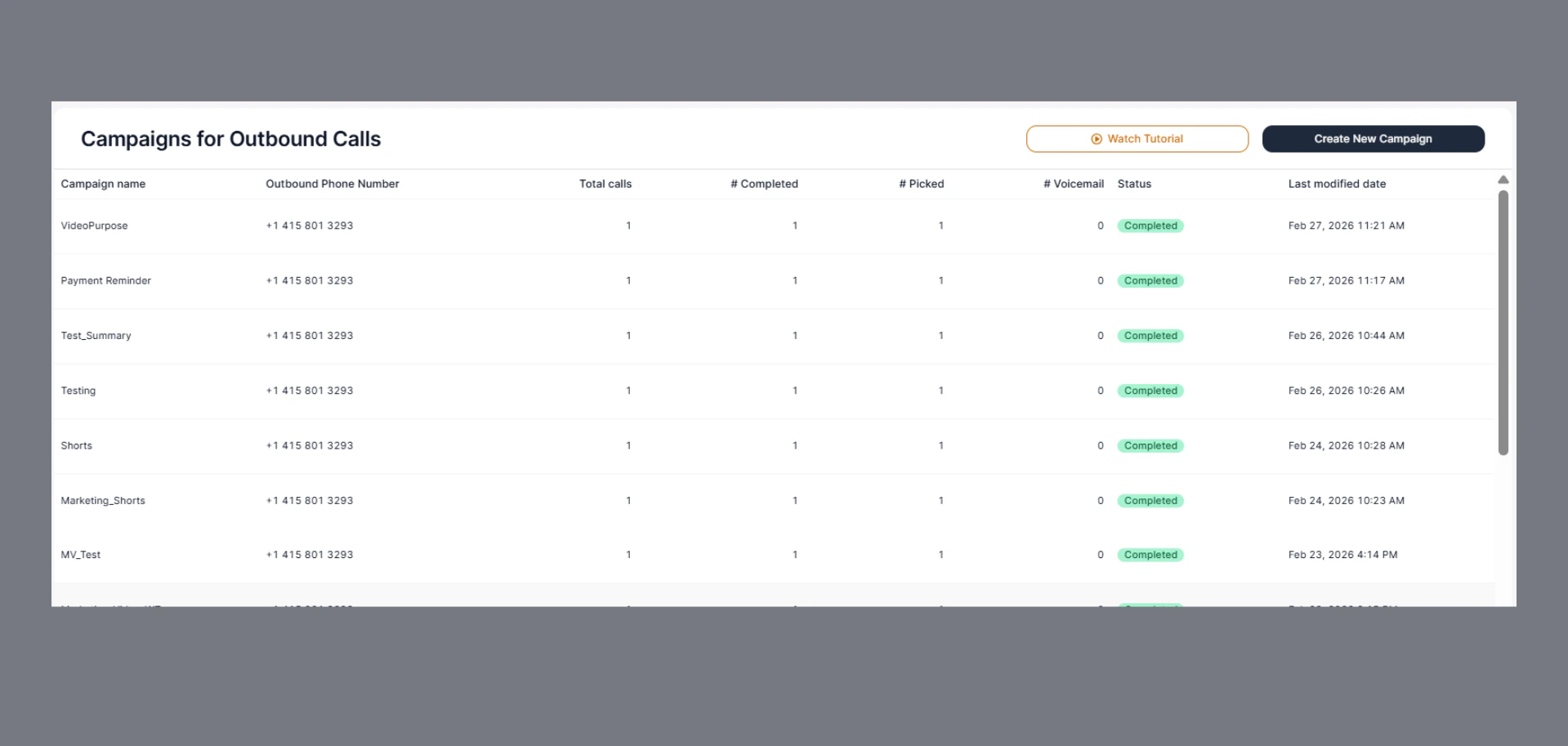
These figures update in real time as calls progress.
Step 3: Open Detailed Campaign View
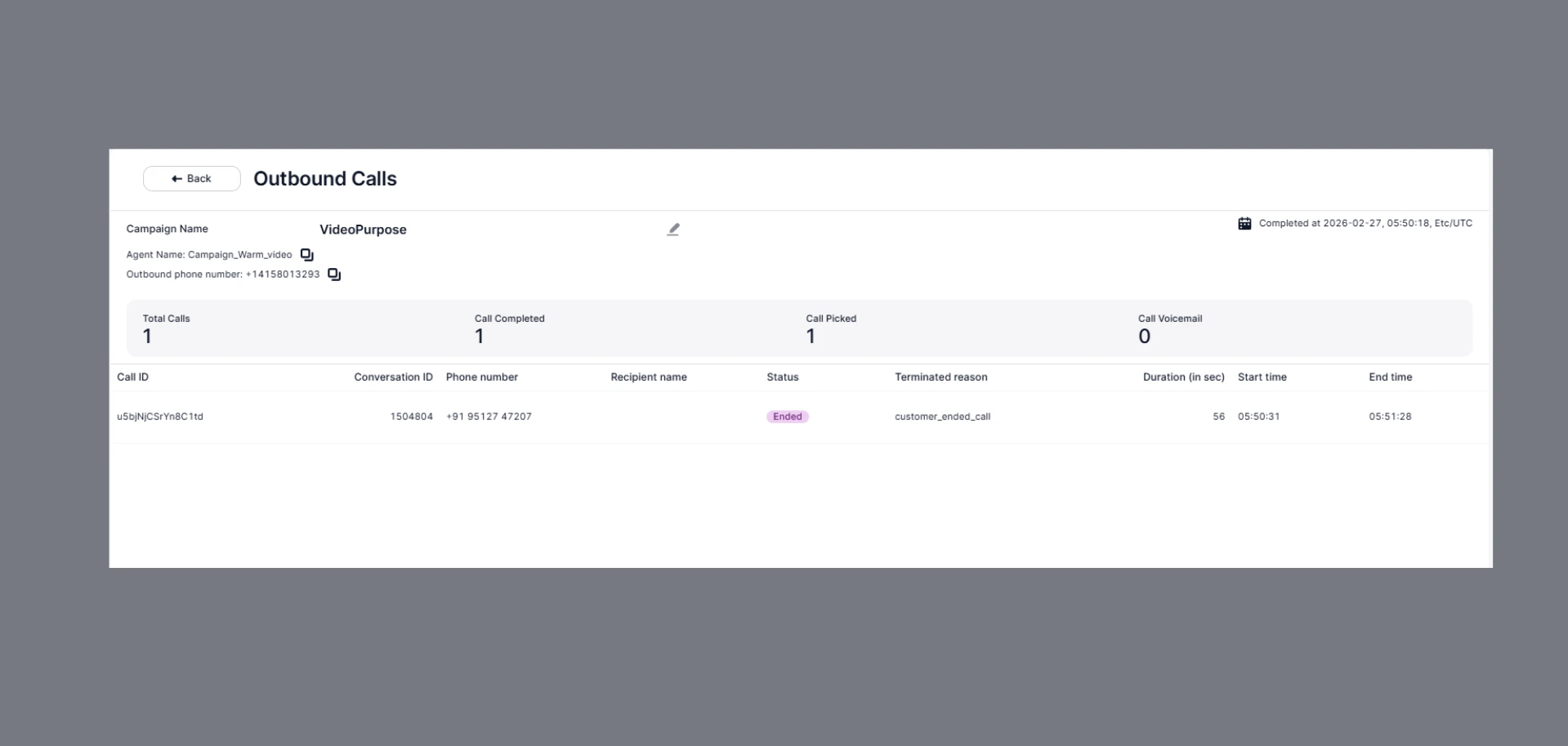
Click a Campaign Name to open detailed call records, including:- Recipient’s number
- Start and end timestamps
- Call outcome (
answered,voicemail,failed, etc.) - Termination reason
- Call duration
Viewing a Call in Detail
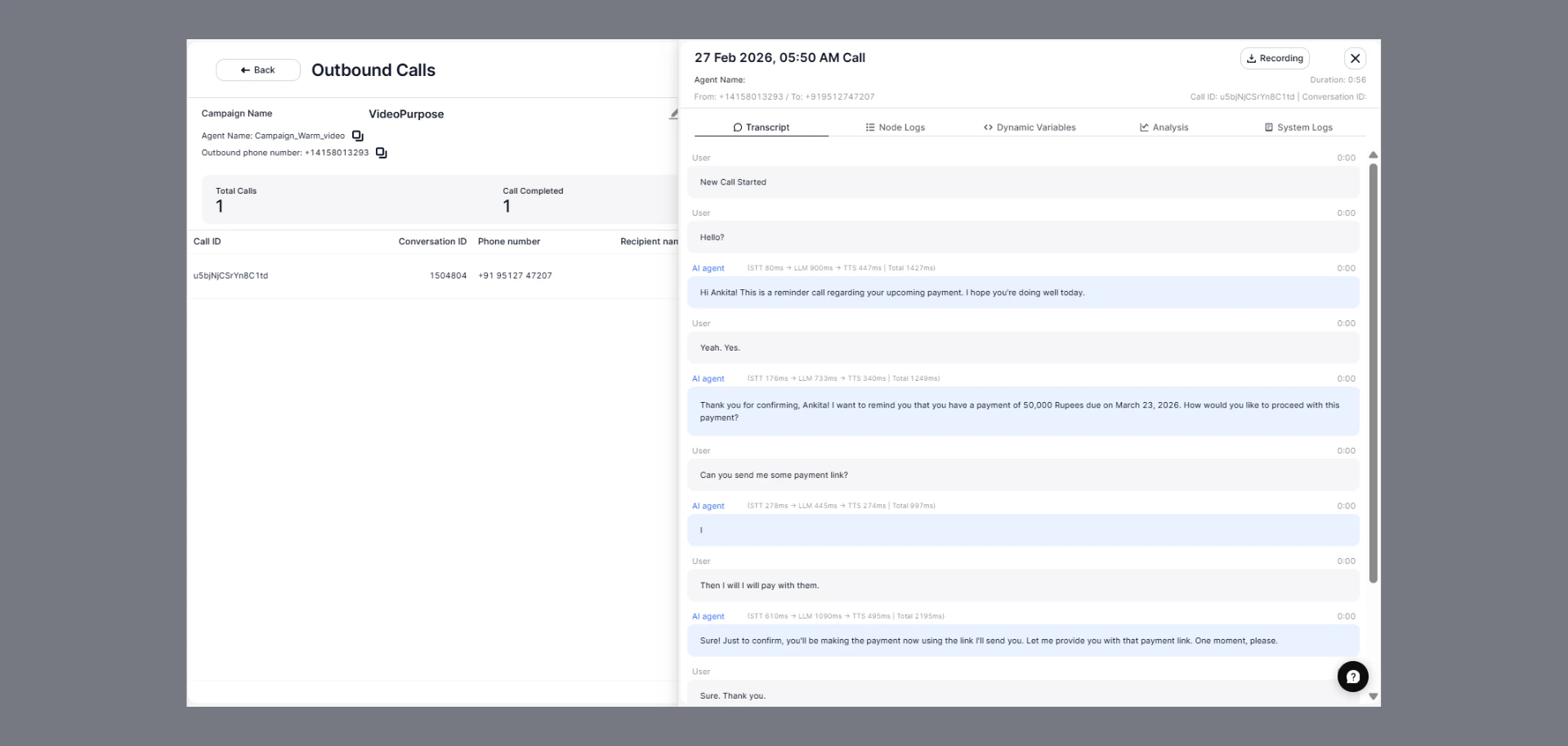
Click any Call ID to open a side panel with full details of that call, including:- Call date, time, and duration
- From / To numbers – Agent’s outbound number and recipient’s number
- Recording – Download or playback the call audio
Example Use Cases
- Marketing managers tracking conversion campaigns.
- Customer service teams monitoring service update campaigns.
- Healthcare organizations verifying appointment reminders.