

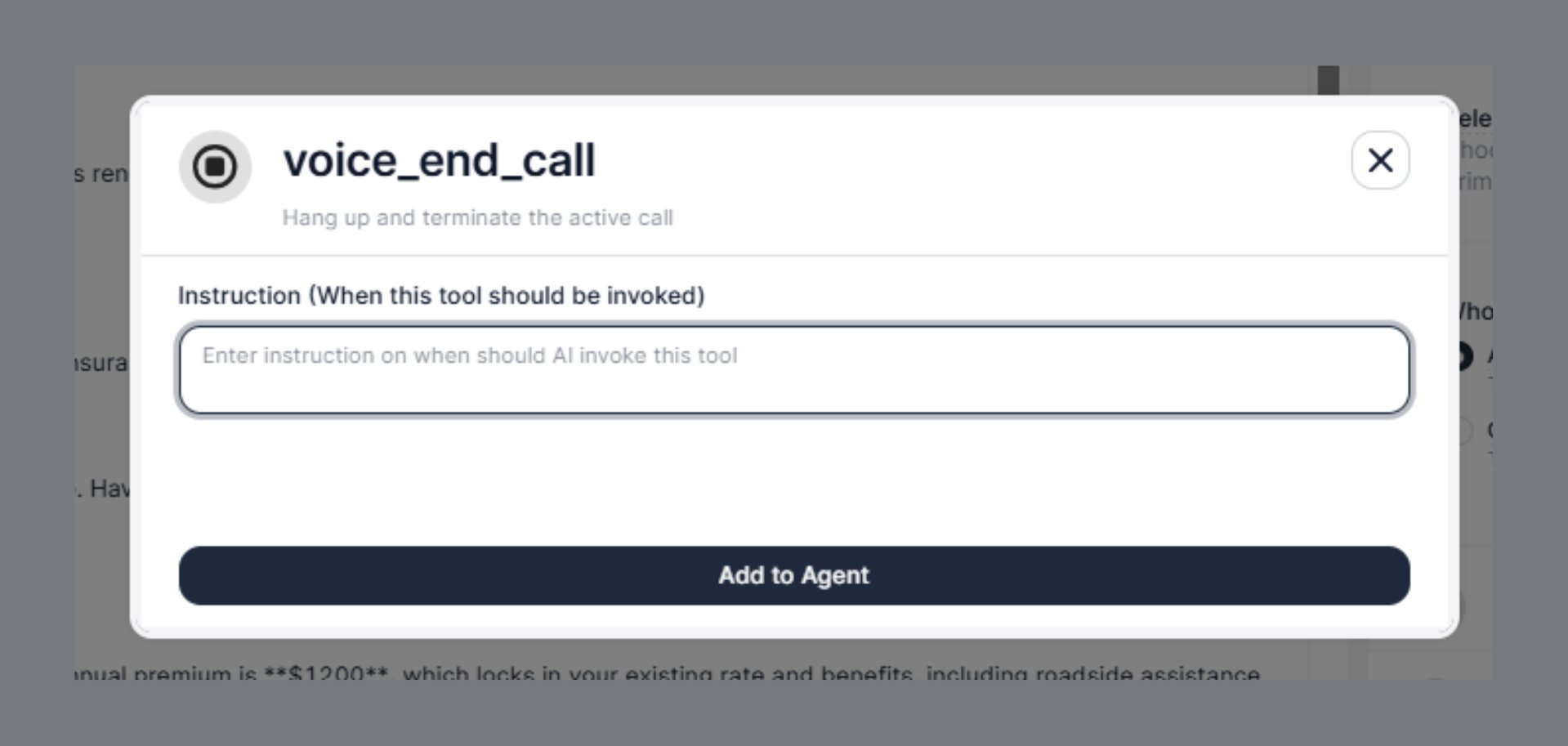
Steps to Add
- Open the Agent Builder
- Click + Add Tool
- Select End Call
- Fill in the Instruction field (described below)
- Click Add to Agent
Configuration Field
Instruction (When this tool should be invoked)
This is the only configuration field for End Call — and it is the most important one. The Instruction tells the AI agent exactly when it should hang up and terminate the call. The agent reads this instruction alongside the conversation context and decides at each turn whether the end condition has been met.Why the Instruction Field Matters
Without a well-written instruction, the agent either:- Ends calls too early — cutting off a customer mid-sentence because a vague condition matched prematurely
- Leaves calls open too long — the conversation is finished but the agent keeps listening, wasting time and creating an awkward silence
Instruction Writing Guide
1. End after task completion
Use this when the agent’s primary goal has been accomplished and there is nothing left to do.2. End when the customer declines or is not interested
Use this for outbound calling scenarios — insurance renewals, campaigns, sales calls — where customers may not want to continue.3. End when the customer says goodbye
The most natural trigger — the customer signals the conversation is over.4. End when the customer is frustrated or unresponsive
Continuing a conversation with an angry or silent customer makes things worse. A graceful exit is the better outcome.5. End after a successful transfer
Once a transfer has been initiated, the AI has completed its role. You can optionally add a closing line before terminating.
Note: When using Warm Transfer, the AI drops off automatically once the bridge is established. Use voice_end_call for Cold Transfer scenarios or when the transfer fails and the AI needs to close out cleanly.
6. End on specific call outcomes (outbound campaigns)
For outbound calls — renewals, reminders, collections — combine end conditions into a single instruction:Combining Instruction with a Farewell
Thevoice_end_call tool terminates the call. To make the ending feel natural, write your agent’s closing line in the main system prompt — not in the End Call instruction itself.
In your main agent prompt:
Real-World Examples by Use Case
Insurance Renewal Bot
Appointment Booking Agent
Collections / Payment Reminder Agent
Outbound Survey Agent
Common Mistakes to Avoid
Best Practices
- Always add
voice_end_callto every agent — without it, the call will not terminate automatically after the conversation ends - Write specific, observable trigger conditions — the agent needs to match language or conversation state, not guess intent
- Separate farewell language from the end trigger — put closing messages in the main prompt, not in this instruction
- For outbound agents, list multiple end conditions — customers can end calls in many different ways
- Combine with voice_transfer_call — if a transfer is attempted and fails,
voice_end_callensures the call doesn’t stay open in a broken state - Test end-of-call behavior in the Test Voice playground to confirm the agent terminates correctly across different conversation paths