

{{variable_name}} in any tool or prompt within the same agent — no manual mapping required.
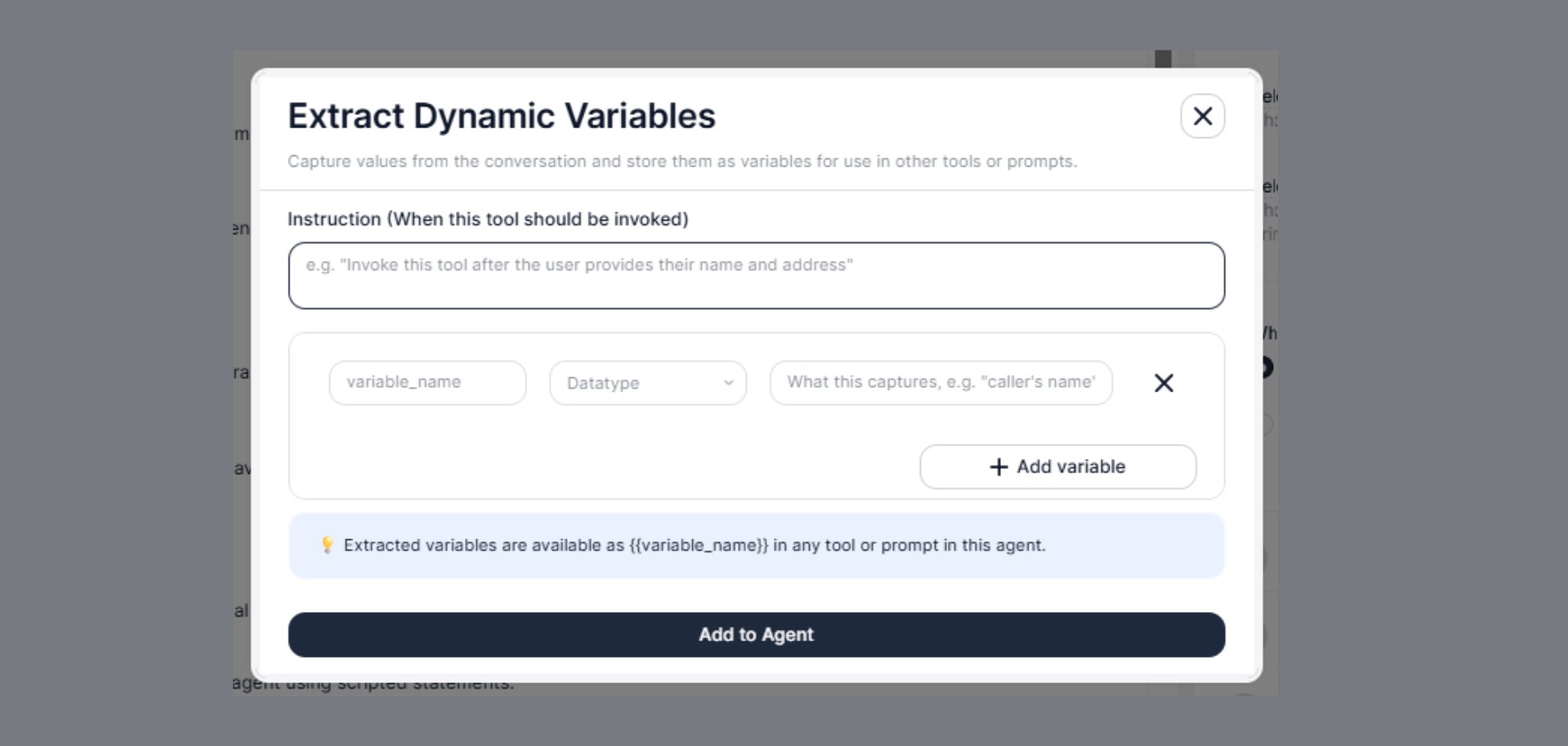
Extracted variables are available as {{variable_name}} in any tool or prompt in this agent.
When to Use
Configure this tool when your agent needs to:- Capture a customer’s name, email, or phone number from conversation
- Store a policy number, account ID, or booking reference before an API call
- Record a preferred date, time, or department for downstream routing
- Save any value the customer provides that another tool will need later
Steps to Add
- Open the Agent Builder
- Click + Add Tool
- Select Extract Dynamic Variables from the tool menu
- A configuration modal will appear — fill in all fields (described below)
- Click Add to Agent
Configuration Fields
Instruction (When this tool should be invoked)
Write a clear instruction that tells the AI agent when to trigger the extraction. The agent reads this and decides at each turn of the conversation whether the condition has been met.Variables
Each variable you want to capture is defined as a row with three fields:variable_name
The identifier you will use to reference this value everywhere else in the agent. Must be in snake_case with no spaces.
val1 or x — they become confusing when used across multiple tools.
Datatype
The expected format of the captured value. Selecting the correct datatype helps the agent extract and validate the value accurately.
When in doubt, use
string — it is the most flexible and works for most values including phone numbers, IDs, and reference codes.
What this captures (description)
A short, plain-language description of exactly what this variable should contain. The agent uses this description to understand what to listen for in the conversation.Adding Multiple Variables
Click + Add variable to add more rows. Each row captures a different value from the conversation. You can add as many variables as needed in a single tool call. For example, an insurance renewal agent might capture all of the following in one extraction:Variable Format
Once defined, variables are referenced using double curly braces throughout the agent:Extraction Timing
The agent extracts variables at the moment the instruction condition is met — not before. This means:- The agent listens through the conversation normally
- When the trigger condition is satisfied (e.g., customer provides their name), the tool fires
- Extracted values are immediately available to all subsequent tools and prompts in the agent
Real-World Example
Scenario: An outbound insurance renewal agent that needs to confirm the customer’s identity and capture their renewal decision before making an API call. Instruction:
Conversation flow:
Best Practices
- Use
snake_casefor all variable names — no spaces, hyphens, or capital letters - Write specific What this captures descriptions — the agent reads these literally to know what to listen for
- Add all related variables in a single tool rather than creating multiple extraction tools for the same conversation segment