

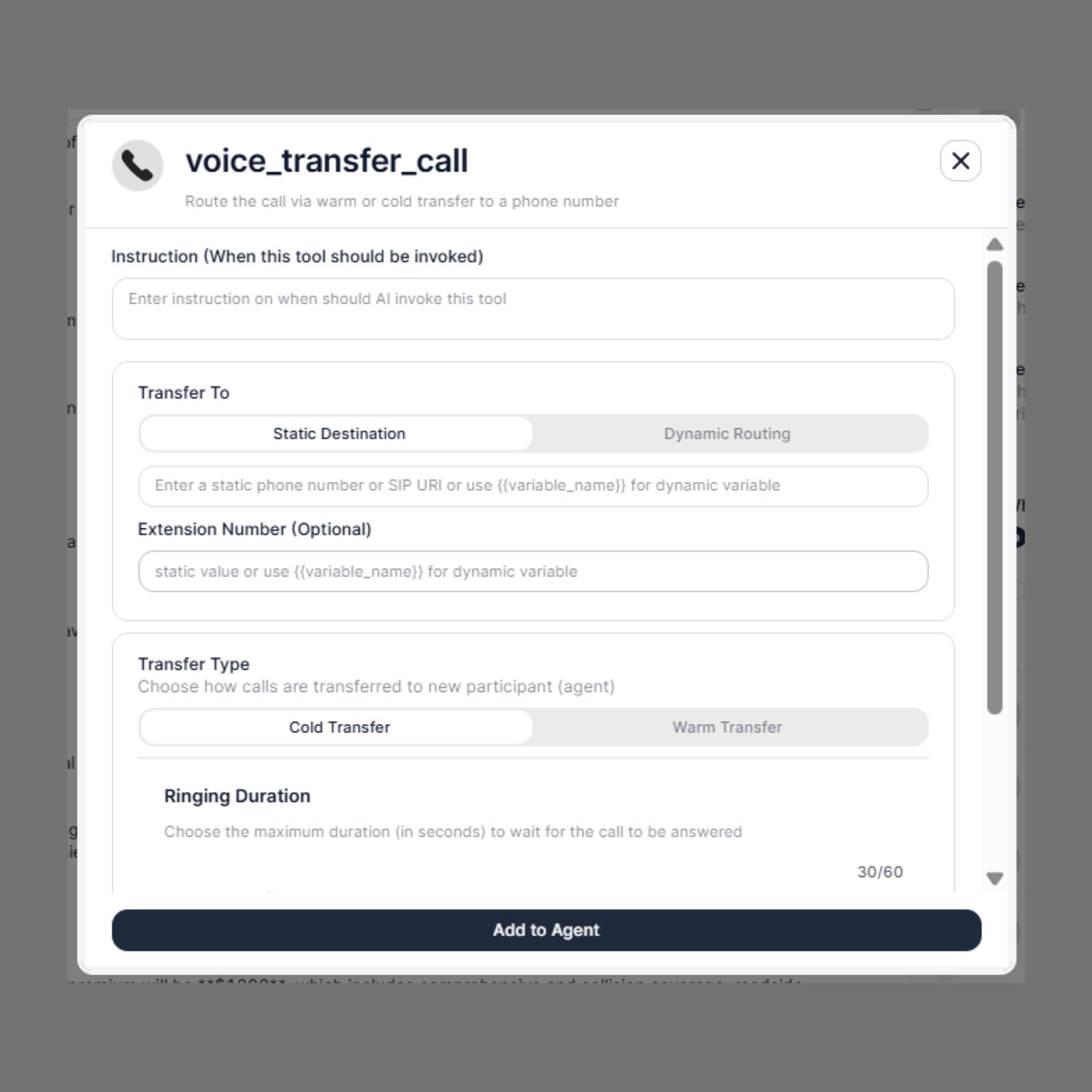
Phone calls only. This tool works exclusively for phone calls and is not supported for web-based chat or voice sessions.
When to Use
Trigger this tool when:- The customer asks to speak with a human agent
- The request requires human judgement or specialist knowledge
- The conversation needs escalation (e.g., complaint, complex query)
- Routing to a specific department is required — Sales, Support, Billing, Renewals, Claims
Steps to Add
- Open the Agent Builder
- Click + Add Tool
- Select Voice Tool Call
- From the Select Action dropdown, choose
voice_transfer_call - Fill in all configuration fields (described below)
- Click Add to Agent
Step 1: Instruction (When this tool should be invoked)
Write a clear instruction that tells the AI agent when to trigger the transfer. The more specific you are, the more reliably the agent will initiate the transfer at the correct moment.Step 2: Transfer To
Defines where the call will be sent.Destination Options
Accepted Formats
- Phone number (E.164 format):
+919876543210 - SIP URI:
sip:agent@yourdomain.com - Dynamic variable:
{{assigned_agent_number}}
All phone numbers must be in E.164 international format, including the country code (e.g.,+1for US,+91for India).
Extension Number (Optional)
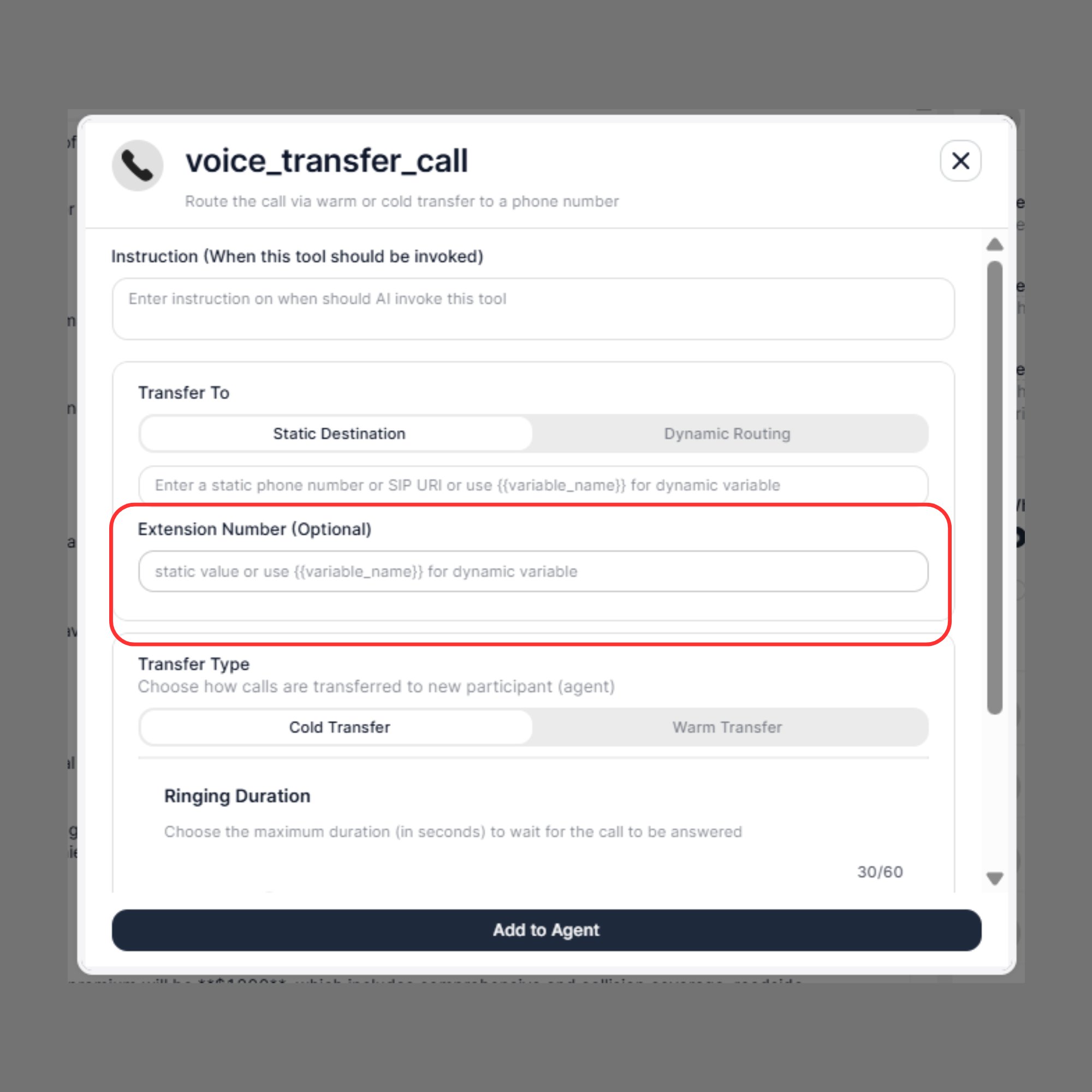
Why the Extension Field Matters
Most business phone systems (PBX, RingCentral, 8x8, Vonage, Twilio) share a single main inbound number across departments. Without an extension, the AI agent connects to the front-line IVR or receptionist and stalls — requiring manual routing. With the extension configured, the handoff is seamless: the agent dials the main number and immediately routes to the right desk, with no customer interaction needed.When to Use the Extension
Your business has multiple departments on one main line:Static vs. Dynamic Extension
Static — same extension on every transfer:
This lets a single Transfer Call tool handle all your departments — no need to create a separate tool for each one.
Step 3: Transfer Type
SigmaMind provides two transfer types. Choose based on whether context sharing is needed before the customer connects.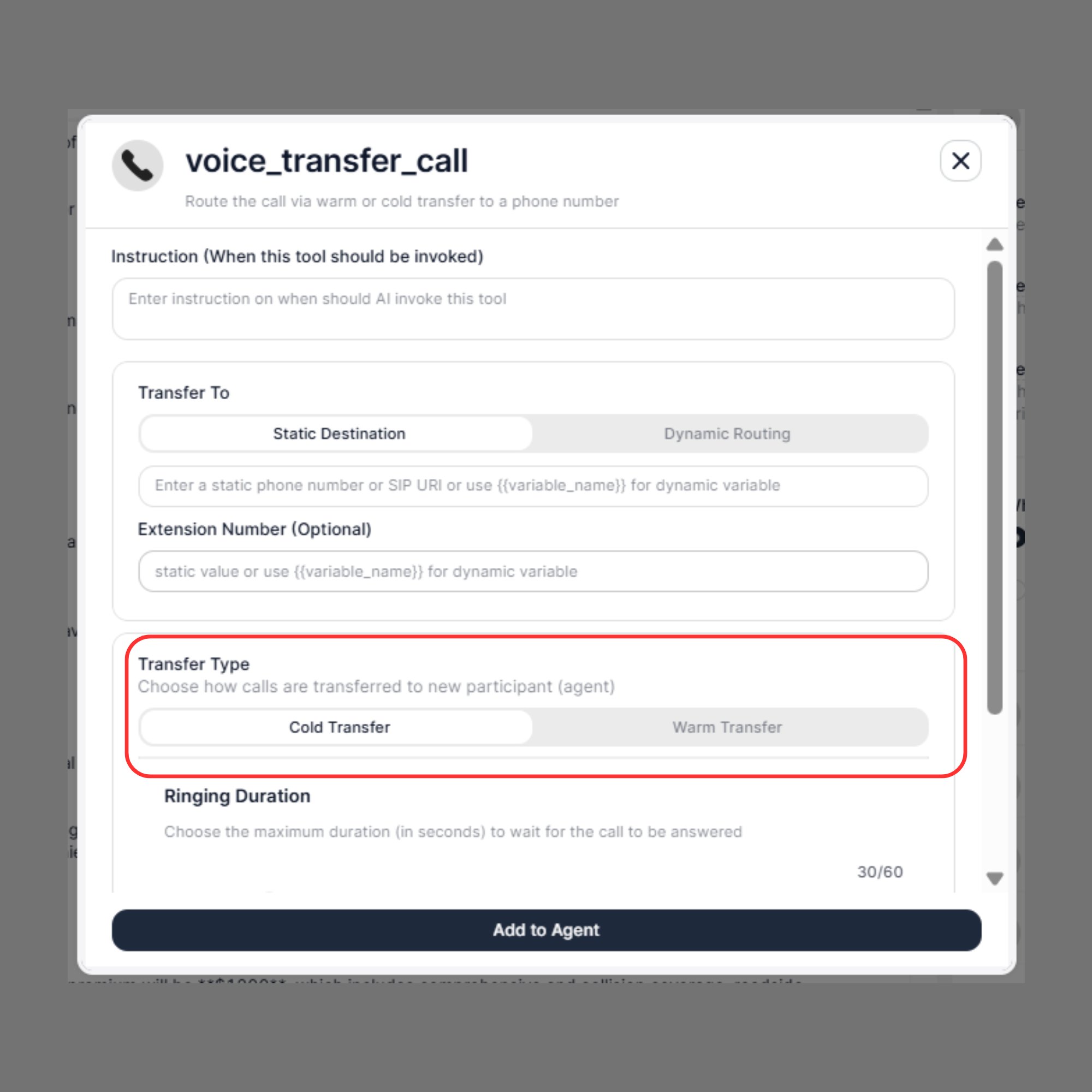
Cold Transfer
The AI agent immediately routes the call to the destination and disconnects. What happens:- The AI initiates the transfer and exits the conversation instantly
- The customer hears ringing and connects directly to the destination
- No context or summary is shared with the receiving agent
- Simple department routing where no background is needed
- Fast escalations where speed matters more than context
- Internal lines where agents already have CRM access
Warm Transfer
The receiving agent is connected first, context is shared privately, then the customer is bridged in. This creates a smooth, professional handoff experience. Warm Transfer happens in two distinct stages:Stage 1: Connecting Stage
In the Connecting Stage, the receiving agent’s line is dialed and connected — but the customer and the agent cannot yet hear each other. The customer is still on hold, listening to ringing or hold music. This stage exists so the receiving agent can receive context before the customer joins, allowing them to prepare a response or pull up the right information.Whisper Message
The Whisper Message is a private audio message played only to the receiving agent during the Connecting Stage. The customer cannot hear it under any circumstances. Use the Whisper Message to give the agent the context they need before they say hello — customer name, reason for calling, policy number, account history, or any other relevant detail. To enable Whisper Message:- Toggle Whisper Message ON
- Enter your message in the text box
- Choose either Static or Prompt mode
Static Whisper Message
A fixed, pre-written message — the same text plays on every transfer.Prompt Whisper Message
Instead of writing a fixed message, you provide an instruction — and SigmaMind AI automatically generates a contextual summary based on the actual conversation before playing it to the agent. Prompt instruction:If the Whisper Message is left empty, the transfer will still proceed, but no context will be shared with the receiving agent. In this case, the Warm Transfer effectively behaves like a Cold Transfer.
Stage 2: Bridged Stage
In the Bridged Stage, the call bridge is established and both the customer and the receiving agent can now hear each other. The AI agent drops off, and the human takes over the conversation. This is the moment the transfer is truly complete.Three-Way Message (Bridge Message)
At the moment of bridging, the AI can play one final message heard by both the customer and the receiving agent simultaneously. This ensures a clear, professional transition and eliminates any awkward silence or confusion about whether the connection has succeeded. To enable Three-Way Message:- Toggle Three-way Message ON
- Enter the message in the text box
- Choose either Static or Prompt mode
Static Three-Way Message
A fixed announcement confirming the connection:Prompt Three-Way Message
A dynamically generated message tailored to the specific call:
All variables must always be written using double curly braces: {{variable_name}}
Step 4: Custom Headers (Optional)
Custom Headers let you send structured metadata along with the call transfer. This information is invisible to the customer but available to the receiving agent’s system, CRM, call center software, or backend automation. Headers are sent as key-value pairs:When Custom Headers Are Useful
Headers provide structured context for automation, reporting, and agent preparation — all without requiring the customer to repeat themselves.
Step 5: Add to Agent
Once all fields are configured, click Add to Agent to save the tool.Full Warm Transfer Execution Flow
Cold vs. Warm
Example Configurations
Example 1 — Cold Transfer to Support
Example 2 — Warm Transfer with Whisper + Bridge Message
Best Practices
- Write specific trigger instructions — vague conditions cause missed or premature transfers
- Use Warm Transfer for high-value calls, complaints, or any scenario where the receiving agent benefits from knowing context upfront
- Use Prompt Whisper Messages when call topics vary widely — the AI generates a tailored summary every time
- Pair Dynamic Routing with Extract Dynamic Variables to handle multi-department routing from a single transfer tool
- Use Custom Headers to pre-load CRM records or tag calls for analytics — reduces repeat questions for the customer
- Always enter phone numbers in E.164 format (
+[country code][number]) - Test transfer flows using the Test Voice playground before going live